
When you reset your Samsung phone, you may face a sudden Google lock. It prevents you from entering the device without the original Google account. This situation confuses users who forget their login details or have bought used phones. At this point, people usually try free FRP bypass APK tools they find online.
However, many realize these apps don’t always work or may risk data security. That’s where Dr.Fone Screen Lock offers a safer way to unlock devices easily. In this guide, you will learn the differences and better options so you can unlock your Samsung device.
Part 1. 5 Signs You’re Stuck on Samsung FRP
Getting locked out after a factory reset can leave you confused and worried. Thus, here are clear signs showing you’re stuck on Samsung FRP and need help quickly:
- Login Block: The phone asks for the previous Google account after a reset.
- Error Message: A message appears saying this device was reset for security.
- No Access: You can’t reach the home screen or use basic phone features.
- Forgotten Email: You don’t remember the Google account linked to your device.
- Failed Attempts: Every method you try fails, pushing you toward FRP bypass searches.
Part 2. Why People Try FRP Bypass APKs First
Many users turn to FRP bypass APKs first because they seem quick and easy. These tools promise instant access without needing the original Google account login. People often try them before using paid or verified Android phone unlocker programs. They believe manual APK tricks might save money and solve issues within minutes. However, not all APKs work safely, leading to errors or incomplete unlocking.
The Problems with FRP Bypass APKs
While FRP bypass APKs look helpful, they usually bring serious issues later. Hence, the following points explain why these methods fail and create more trouble:
- Fake Links: Many download pages contain viruses or harmful hidden software scripts.
- Data Theft: Some APKs secretly steal your saved files or login information.
- Warranty Loss: Unauthorized tools can void your device’s official service warranty.
- No Updates: Most tools stop working after Android security updates are released.
- Complex Steps: Installation needs multiple tricks that confuse mobile users easily.
Part 3. Step‑by‑Step Guide to Trying FRP Bypass APK Methods Safely
Trying FRP bypass APK methods needs careful steps to avoid unwanted issues. These methods help users reach device settings when normal access is blocked. However, using them carefully is important to prevent data loss or security problems. Anyhow, let’s explore how you can use APK files to perform this process:
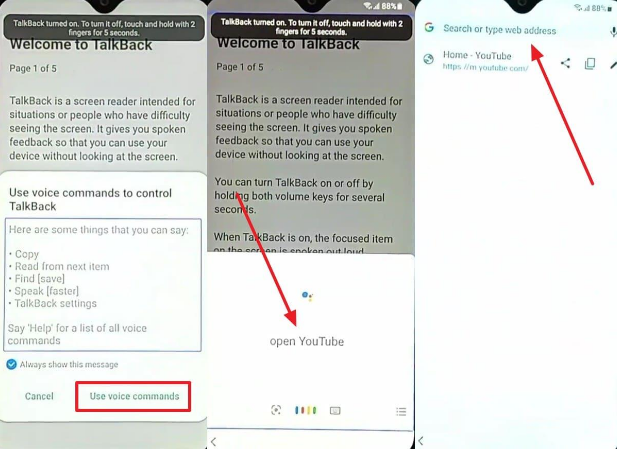
Step 1. While setting up your phone, connect it to your Wi-Fi and revert to the welcoming screen. Tap your 2 fingers on the screen for a few seconds to access “TalkBack.” Swipe right or as per the displayed prompt to choose “Use Voice Command > Speak Google Assistant> Open YouTube.” Press “Agree and Continue > No Thanks > Web Link” and type “maxroms.com.”
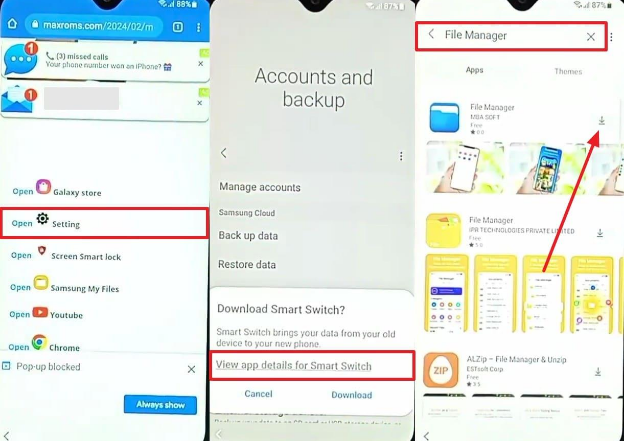
 Step 2. Opt for “Maxroms Google Bypass > Settings > Samsung Account” and sign in to your account. After that, head to “Accounts and Backup > Bring Data From Old Device > View App Details For Smart Switch.” As you access, tap the “Search” icon to open “File Manager” and install it. Then search for and install the “App Launcher” app.
Step 3. Reopen “Maxroms” website on “Chrome” and tap “FRP_Android_7.apk” and “FRP_Bypass.apk” to install it. Head to “Settings > Privacy > Permission Manager > Files and Media > Three Dots > Show System.” Now, tap both “Android Setup” and “My Files” and set them to “Don’t Allow.” Later, access “Biometrics and Security > Install Unknown Apps > File Manager” and tap “Allow from This Source.”
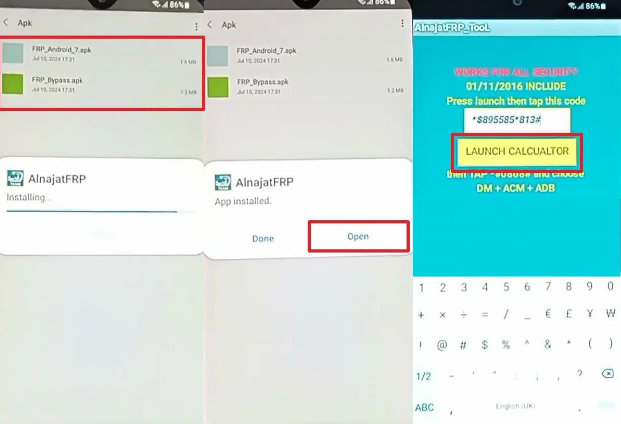
 Step 4. Open the “File Manager” app to tap “Install > Accept > Allow > Allow Access to All Files > APK.” Afterward, install both downloaded APK files to your phone. Once “FRP_Android_7.apk” is installed, tap “Open > Continue” and type code like “*$895585*813#.” Then, hit the “Launch Calculator” button around 10 to 20 times until your phone powers off. Once it is powered on after a few seconds, you will bypass FRP and the Google verification process.
Part 4. Try Dr.Fone Screen Lock Solutions — The Reliable Methods When APK Fails
When FRP bypass APKs don’t work, a Samsung FRP remove tool like Dr.Fone can be helpful. So, this part shows you 2 ways to bypass FRP via this tool online and offline:
1. Dr.Fone Online Unlock (For Samsung Devices Only)
It is a trusted Android phone unlocker made especially for Samsung phones. Dr.Fone Online Unlock removes the Google FRP lock remotely without requiring unsafe manual steps. Moreover, users only need to submit the device model and IMEI or serial number first. The system checks details securely and never stores any personal or device information.
Once verified, the remote unlocking process begins immediately through a safe online connection. After unlocking, users can log in with any new Google account easily. Furthermore, it fully supports Samsung phones and tablets across all countries and regions. The process usually takes between 1 and 10 minutes to finish completely.
Key Features
- Model Support: Works with all Samsung models, including Galaxy S, Z, C, and W series.
- System Compatibility: Supports multiple Samsung One UI versions like 7, 6.1, 6.0, 5.1, 5.0.
- High Success: 100% FRP removal rate on all Samsung devices using strong technical expertise.
Detailed Steps to Bypass FRP Lock via Dr.Fone Online Unlock
Go through the given simplified manual to unlock your Samsung device from FRP using this online tool:
Step 1. Open the Online FRP Unlock Service
Visit “Dr.Fone Online Unlock” in your browser to pick the “FRP Removal” option and select your phone model. After that, enter your IMEI yourself or allow the system to detect it from your connected Samsung device.
Step 2. Initiate the Samsung FRP Removal Process
Once all information is verified, press the “Unlock” button to start the procedure. The platform will process the FRP removal on the server side and then guide you to finalize the activation.
2. Dr.Fone – Screen Unlock (Compatible with Major Android Brands)
Dr.Fone – Screen Unlock works as a powerful cross‑brand solution for Android FRP removal. It supports 15+ major mobile brands, such as Realme and OnePlus. The tool also delivers a 100% FRP success rate, especially for Samsung Snapdragon and MTK devices. Apart from that, users can even unlock phones running Android 16 and all earlier versions.
Through Dr.Fone – Screen Unlock (Android), the process works smoothly across both tablets and smartphones. The One-Click Removal option simplifies unlocking for all Android devices in minutes. Along with that, it displays progress clearly, so users know when the FRP removal is complete.
Key Features
- Smart Detection: Automatically selects a suitable removal mode for the connected Android brand.
- Safe Unlock: Protects phones from security risks during FRP bypass operations securely.
- Screen Unlock: It even helps unlock patterns and passwords along with FRP locks.
Step-by-Step Manual to Bypass FRP Using Dr.Fone – Screen Unlock
Adhere to the instructions provided below to unlock your Samsung FRP efficiently without damaging the device:
Step 1. Navigate to the FRP Bypass Tool
Head to the “Toolbox” tab to enter the “Screen Unlock” category and pick “Android.” From the available functions, choose “Remove Google FRP Lock” and then connect your FRP-locked Samsung to the PC.
Step 2. Select the Method Based on Your Android Version
Moving forward, choose your phone’s brand and click the “Start” button. When the method selection appears, pick “All Android versions (One-Click Removal)” and hit “Start” once more.
Step 3. Start the FRP Removal Process on Your Phone
Afterward, adhere to the directions to enable USB Debugging and press “Authorized.” The tool will then begin clearing the Google FRP lock and show the progress as it completes the task.
Part 5. FRP Bypass APK vs Dr.Fone: Clear Head‑to‑Head Comparison
When choosing between free APK tricks and verified tools, this comparison helps you decide quickly:
| Feature | FRP Bypass APK | Dr.Fone Screen Lock |
| Ease of Use | Complex setup needing multiple manual steps | Simple guided process with clear on-screen instructions |
| Success Rate | Often fails due to outdated or inconsistent APK files | 100% success across supported brands and models |
| Security | May expose phone to data theft or malware infections | Fully encrypted and verified unlocking procedure |
| Device Support | Limited to older Samsung models only | Compatible with major Android brands and versions |
| Speed | Takes long and requires multiple retries | Unlocks within minutes using one-click commands |
| Reliability | Depends on third-party APK stability | Guaranteed results backed by tested unlocking technology |
| Updates | Stops working after new system versions or patches | Updated regularly for new Android releases |
| Risk Level | High risk of permanent lock or software corruption | Zero risk with certified safe operation |
Overall, Dr.Fone stands out as the clear winner because it delivers safe and highly successful FRP unlocking.
Conclusion
To sum up, free FRP bypass APKs may seem helpful, but they fail or expose risks. Dr.Fone solutions, however, ensure safe and guaranteed unlocking for Android devices. Whether your phone is locked or the APK method doesn’t work, stay secure. Therefore, avoid risky downloads and stress by choosing a verified unlocking tool. So, for an effortless experience, always use Dr.Fone Screen Lock to unlock safely.


