

Navigation problems can be frustrating, especially when Google Maps suddenly shows the wrong location, loses signal, or takes too long to lock onto GPS. Huawei phone users may encounter these issues more often due to system settings, permissions, or background optimizations rather than hardware faults. The good news is that most GPS problems are easy to fix with a few adjustments. Understanding the common causes is the first step toward restoring accurate navigation and smoother daily travel.
Practical Fixes for Google Maps GPS Issues on Huawei Phones
Before assuming the GPS itself is broken, it’s important to review how location services, app permissions, and system settings interact. The following solutions address the most common reasons Google Maps struggles with location accuracy.
Check Location Services and Accuracy Settings
Start with the basics by ensuring location services are fully enabled. Go to Settings > Location and confirm that location access is turned on. For the best results, you can enable high accuracy mode so that GPS, Wi-Fi, and mobile networks are all available for your phone. This combination improves precision, especially in urban areas where satellite signals can be blocked by buildings.
Grant Full Location Permissions to Google Maps
If Google Maps doesn’t have proper permissions, GPS performance will suffer. Open Settings > Apps > Google Maps > Permissions and make sure location access is set to “Allow all the time” or “Allow while using the app.” Also, enable precise location if available. Without these permissions, the app may display delayed or incorrect positioning.
Disable Aggressive Battery Optimization
Huawei’s battery management is designed to save power, but it can restrict background services that GPS relies on. Navigate to Settings > Battery > App launch and find Google Maps. Turn off smart management and allow the app to run in the background freely. This prevents GPS tracking from being paused when the screen is off or when switching apps.
Calibrate the GPS and Compass
Sometimes the issue isn’t GPS but compass misalignment. Open Google Maps and move your phone in a figure-eight motion to recalibrate the compass. You can also improve accuracy by stepping outdoors and waiting a minute for the phone to reconnect to satellites. This simple calibration often resolves direction and positioning errors.
Update Google Maps and System Software
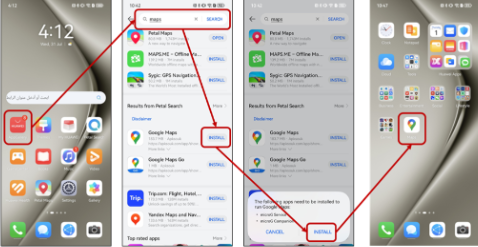
Outdated apps can cause compatibility issues. Check AppGallery or your installation source to ensure the google maps on huawei is updated to the latest version. At the same time, keep your phone’s EMUI or HarmonyOS version current, as system updates often include location and sensor improvements that enhance GPS stability.
Clear Cache and App Data Carefully
Corrupted cache files may interfere with location tracking. Go to Settings > Apps > Google Maps > Storage and clear the cache. If problems persist, clearing app data can help, but note that this will remove offline maps and saved preferences. Reopen the app afterward and allow it to reinitialize location services.
Check Network Connectivity
Even though GPS uses satellites, Google Maps also depends on data to load maps and refine locations. Ensure mobile data or Wi-Fi is active and stable. Switching between Wi-Fi and mobile data can sometimes refresh location accuracy, especially when the map appears blank or fails to update.
Conclusion
GPS issues on Huawei phones are usually caused by settings conflicts rather than faulty hardware. By checking permissions, adjusting battery optimization, updating software, and calibrating sensors, most Google Maps problems can be fixed quickly. Taking a few minutes to fine-tune these options ensures smoother navigation and fewer interruptions. With the right setup, your Google Maps for Huawei devices can provide dependable location accuracy, helping users travel, commute, and explore with confidence.